
First let's understand what are APIs ?
An API, or Application Programming Interface, are mechanisms that enable two software components to communicate with each other using a set of definitions and protocols. It give's secured access to the required (limited) data, without sharing the backend database. APIs are a key part of the internet, enabling cloud services, mobile apps, and web-based services.
The api's defines how the two communicate with the software, using requests and responses. Majority api provider's provide documentations, which contains information on how developers are to use (structure) those requests and responses and use their api's to read and/or write data.
What are 3rd party api's in Survey Back Office ?
In Survey Back Office 3rd party api's are used to get survey (study) projects from 3rd parties like CINT, Innovate MR etc. It fetches the project data from their live survey inventory and provide you an option to add those projects to survey back office and work on them.
In Survey Back Office there are 3 in-built apis for companies like, 1) CINT, 2) Innovate MR and 3) Pure Spectrum. If you require to integrate any other companies api's then you can use "Custom APIs". Custom APIs allow you to add api integration as per your requirement, but it's pre-requisite is you should know how to configure "Custom APIs".
Follow Below Steps For Ready Company APIs:-
- From Main Menu Click On "Application Settings"
- From Application Settings Click On Tab "3rd Party APIs"
- From here fill in the required details like secret key, username or access token, url etc and then click on "Save All Settings"
- Once the above application settings are set, From the main menu click on "3rd Party APIs"
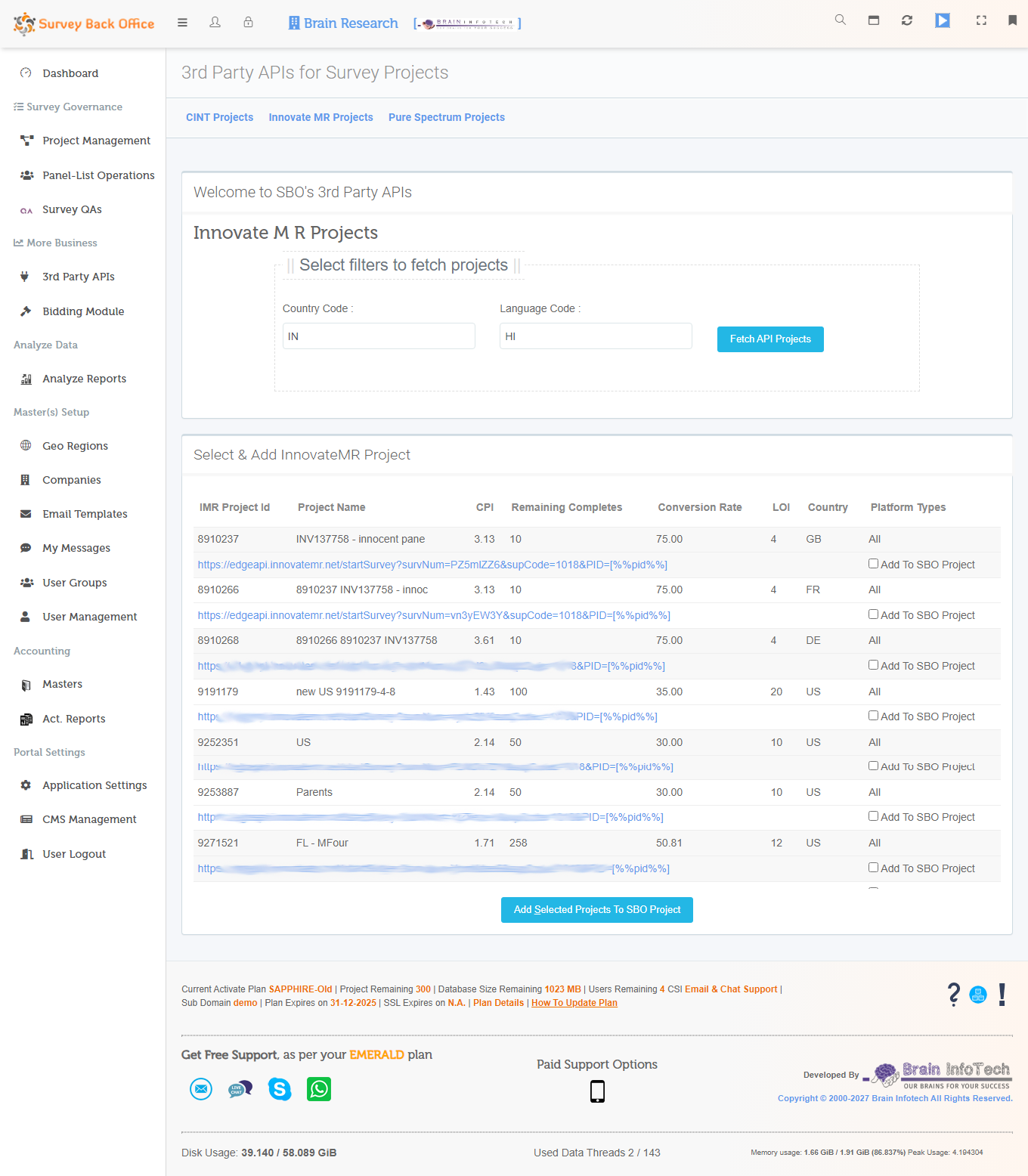
- From here click on the related company's link and then input the filters as per your requirment and then click on "Fetch API Projects"
- After getting "API data Fetched" message, you will get a list of projects which shall have details like the project name, CPC, Remaning Completes etc. From here you can select the project (by checking the checkbox) you wish to add to the survey back office project section and then click on "Add Selected Projects To SBO Project". And then after once the projects are added you will get a message "Projects added successfully. Check below created projects by clicking on its project id link." It will also show the project ids of the added projects
- Now the projects are added to the project section, you just simply need to edit those projects and check the setup and add "Panel Vendors" and are ready to earn.
A sample screen, which shall be visible after step 6 :-
Follow Below Steps For Custom APIs :-
For each custom apis you must have the documentation and based on that documentation you need to configure the apis. The documentation will guide you on what shall be your input data and where you need to punch that data in the configuration section.
- From the main menu click on "3rd Party APIs"
- From here click on "Custom APIs"
- In Custom APIs, you need to do 2 things, first configure an api and second execute the configured api. So first let's see how to configure an api.
- To configure an api you need to select a company from "Select Service Provider" combo listbox and then after select "-- NEW --" from "Select API" combo listbox and then click on "Configure".
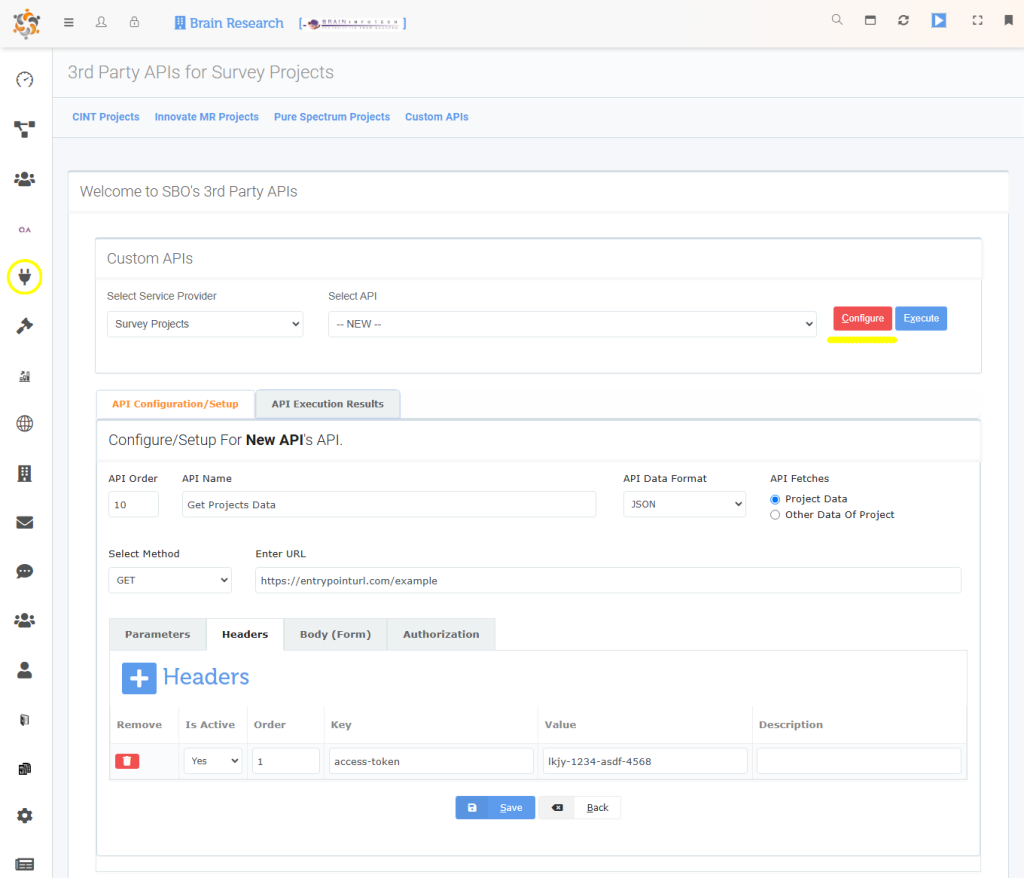
- Here on configuration screen, you need to input the data fields and click on save.
- API Order :- The order of the new api.
- API Name :- Name of the api
- API Data Format :- What type of data format is been fetched by the api json or xml
- API Fetches :- If the api fetches project data then select "Project Data" other wise select "Other Data Of Project"
- Select Method :- If the api just reads the data then select "GET" and if api reads and sends the data then select "POST"
- Enter URL :- The URL or the link of the api from where it's going to access the api data
- Once this basic fields are configured then after you need to configure the fields on the "Tab" section
- Parameters :- In these section you need to add parameter field key and values which are required in the url (link) as parameters
- Headers :- In these section you need to add header field key and values which needs to be sent in the memory (header) of the api while executing the api.
- Body (Form) :- These are the form field values
- Authorization :- If required to pass authorization to execute the api, then use these section
- Once tab fields are added click on "Save" and then refresh the screen and then select the newly created api from "Select API" combo listbox and click on "Execute". If the api is configured correctly you will get the results other wise you will get an error message.